The Other Best Social Media Scheduling Platform for Distributing Content

Welcome to the Queue!
Buffer is purely a scheduling platform – no streams, no management – but it does allow you to customize by platform and for a permanent schedule.
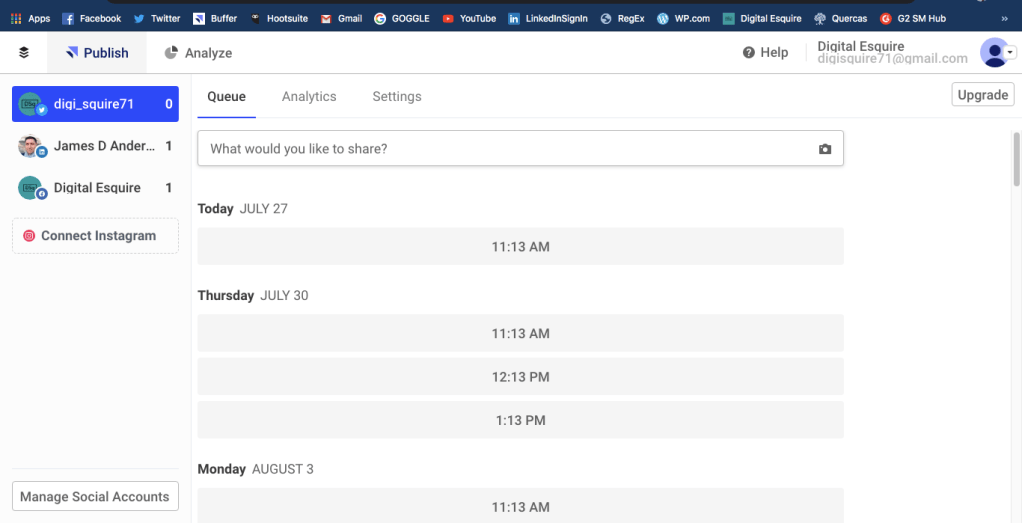
This is your overall queue/schedule snapshot (in this case, the Twitter account is selected):
Set Up a Schedule
To set up a schedule, click on Settings and then, when it appears, Posting Schedule.
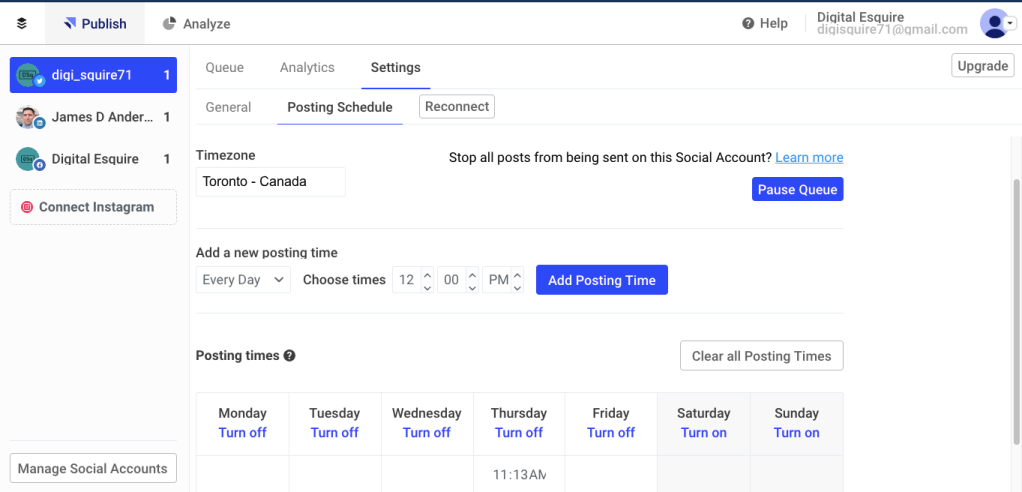
Make sure you’re Time Zone is set up correctly! You don’t want to be posting for deep in the South Pacific when you want to be posting for the East Coast.
Check out the drop-down windows to see your various options.
As you add posting times, they will appear in the calendar below. I added Monday at 11:13 AM which you can see in the calendar window.
Now! Here’s the thing! (No one explained this to me, so I don’t want you to go through what I went through.)
This becomes your default schedule. Which means, that as you create and add posts to the scheduler they will drop into this calendar sequentiallybased on what you have set up.
So! Looking back at the first image in this Buffer section, you’ll see that my very next post will automatically drop into Monday, July 27 at 11:13 AM. And – this is important – the next one will drop into Thursday, July 30 at 11:13 AM.
Creating a Post
You create a new post by clicking into the What would you like to share? box atop the page.
The composer pops open:
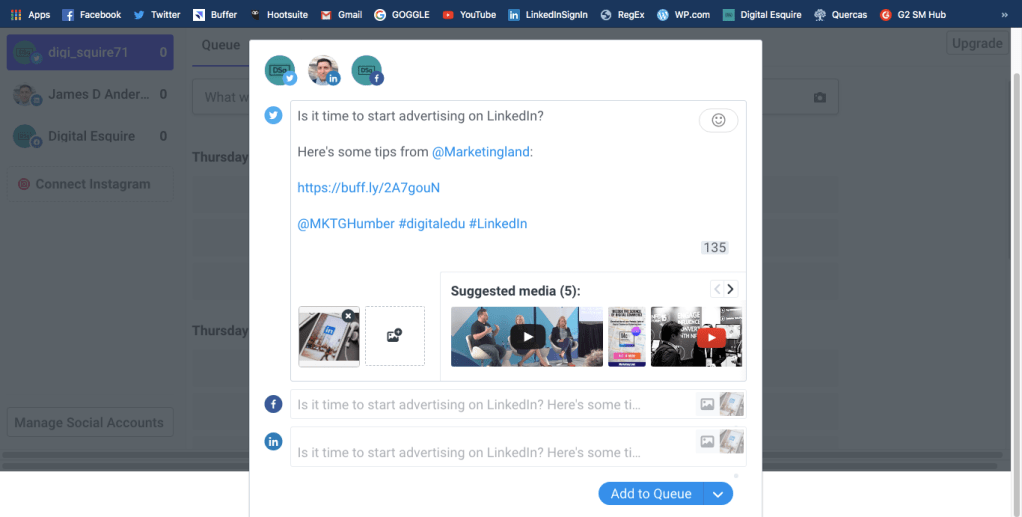
And you’ll see all of your accounts – that you’ve previously set up – available across the top of the box. Select the ones you want to post to. Here, I’ve chosen all three and you can see that I’m working in the Twitter version right now, but below you will see the Facebook and LinkedIn window/boxes waiting to be addressed.
Just click on one of them and they will expand – now you’re working on the post for that platform.
Special note: In order to see mention and hashtag options (a drop down will appear as you type), just click one social platform, compose, find your mentions and hashtags and then add the other platforms and customize.
Also, when you paste in an external link, Buffer automatically shortens it into a buff.ly link which is helpful. And you’ll also notice that a series of images appear for you to choose from, if there are any available from the webpage you’re linking to. Pick one and it will become the featured image in your post.
Keep in Mind
Now, there’s no editor here – and all the platforms have different ideas of how big an image should be – so you may have to snip and edit it separately and then upload it.
Add to Queue
Once you’ve get each one customized as you’d like, click on the Add to Queue.
And popping back to the Queue dashboard, you’ll see:
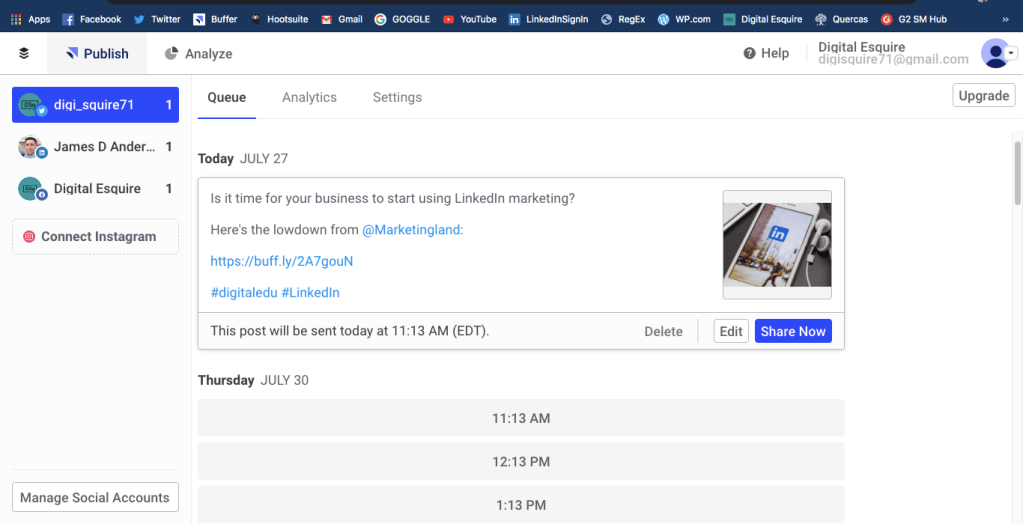
As mentioned above, the message has “dropped” into the first available time slot you’ve previously created.
Now sit back and let Buffer do the work for you!
So sign up for a Buffer account.
 Digital Esquire